
Start with your werd
A daily Quran companion. You pick a time and an amount, and from that time each day your werd opens the first time you unlock your phone. It stays until you read it.

How it works
-
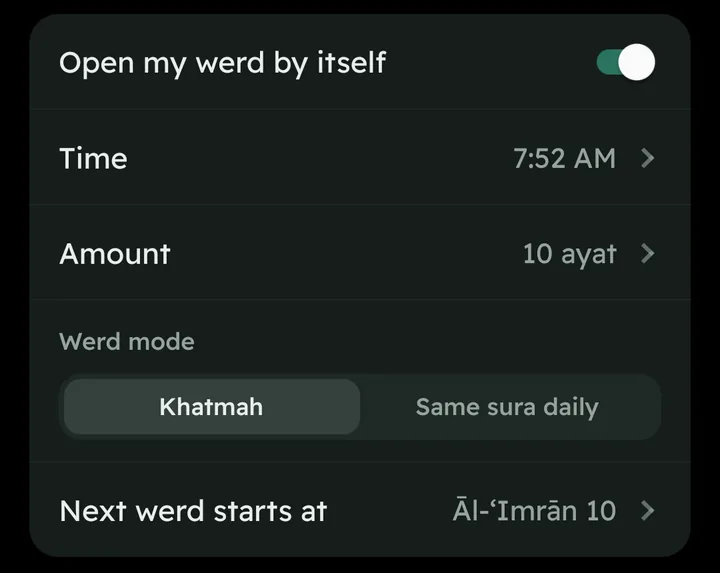
Choose your time and amount
A time that suits you each day, and an amount in ayat or pages. Each day continues where you stopped, like a khatmah, or you can read the same sura every day.
-
Unlock your phone
After that time, your werd opens by itself the first time you unlock the phone. If you are using the phone when the time comes, it opens right then.
6:00 AM Werd timeYou unlock Your werd opens -
Read, then tap “I have read my werd”
Your werd stays on screen until you read it, or until you snooze it for 15 minutes, 30 minutes, an hour or a length you choose. Calls always work, and the Call button opens the dialer.
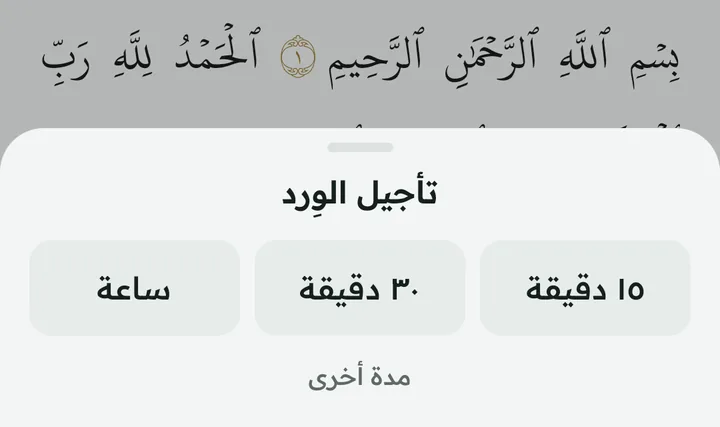
Shown with the app in Arabic.

Download and install
The app is not on Google Play, so you install it from a file. It takes about two minutes. The steps are written for Samsung phones; other Android phones use similar names.
You will see warnings because the app isn’t from the store; that’s normal for any app installed from a file. The app doesn’t use the internet and doesn’t look at your data.
Download for Android-
Download the file
Tap the download button. The file is about 55 MB, so Wi-Fi is best. If your browser warns that this type of file can harm your device, choose Download anyway.
-
Allow it to install
Open the file from the download notification or from the My Files app. The phone will say it isn’t allowed to install unknown apps from this source: tap Settings, turn on Allow from this source, then go back.
-
Install the app
Tap Install. If Google Play Protect shows a message, tap More details, then Install anyway.
On Samsung, if Auto Blocker stops the install, turn it off for now in Settings › Security and privacy › Auto Blocker, and turn it back on afterwards.
-
Open the app and finish setup
It asks for your language, your werd time, the amount and where to start, then for a few permissions.
-
Turn on “Appear on top”
This is the most important step: without it, your werd can’t open by itself. Tap Allow display over apps at the bottom of the screen (or Allow next to Display over other apps), then turn on the switch on the screen that opens. On Samsung it is called Appear on top.
Switch greyed out?
This happens on Android 13 and newer with apps installed from a file.
- Tap the greyed switch, then tap OK in the message.
- Go back to the app, tap Switch greyed out?, then Open App info. (Or touch and hold the app icon › App info.) Then tap the three dots at the top › Allow restricted settings, and confirm.
- Go back and turn on Appear on top.
-
Turn on the other permissions
- Notifications
- To tell you when it is werd time.
- Calls
- So your werd never covers a call.
- Battery: Unrestricted
- So the phone doesn’t stop the reminder.
On Xiaomi, Oppo and some other phones, setup may also ask for Autostart. At the end of setup, tap Preview how the werd appears to see it work.
Updating the app
When a new version comes out, download it here and install it over the old one. Your settings and your place in the khatmah stay as they are. Don’t uninstall the old version first: uninstalling deletes your settings.
The latest version number is under the download button. To see the version you have, touch and hold the app icon › App info; the version is at the bottom of the page.
The Quran text and translation
The Quran text is the King Fahd Complex Madinah Mushaf (1441 AH print), Hafs ‘an ‘Asim, shown in the Complex’s own KFGQPC Hafs font, laid out like the printed Mushaf and never modified.
The app also offers an optional English translation of the meanings: “The Noble Qur’an” by Dr. Muhammad Taqi-ud-Din Al-Hilali and Dr. Muhammad Muhsin Khan, from QuranEnc.com. No translation fully conveys the meanings of the Qur’an.
Your privacy
No account and no sign-in. The app doesn’t use the internet, so nothing leaves your phone: your settings and your place in the khatmah are stored on the phone only.
Privacy policy